 Planfile
terraform import: bring existing resources under Terraform
Importing brings an existing object, such as an S3 bucket created in the console, under Terraform's management by recording it in state. Since Terraform 1.5 the recommended way is an import block with to (the resource address) and id (the provider's ID), applied through a normal plan. terraform plan -generate-config-out=generated.tf can write the resource block for you. The older terraform import ADDRESS ID command still works.
What terraform import does
Terraform only manages objects that are in its state. A bucket created by hand in the console, by a script or by another tool is invisible to it: if you write a matching resource block and apply, Terraform tries to create a second bucket with the same name and the provider returns an error.
Importing fixes that. You tell Terraform which resource address in your configuration corresponds to which real object, Terraform reads the object from the provider and records it in state. From then on it is managed like anything Terraform created: planned, updated and, if you remove the block, destroyed.
There are two ways to import:
importblocks (Terraform 1.5+): declared in configuration, shown in the plan, applied withterraform apply. This is the current approach.- The
terraform importcommand: the original CLI command, which writes to state immediately with no plan. It still works.
Either way, you need a resource block that matches the real object. Import blocks can write a first draft of that block for you.
Terraform import block example: an existing S3 bucket
Say a bucket called acme-logs already exists. Add an import block and the resource block it imports into:
import {
  to = aws_s3_bucket.logs
  id = "acme-logs"
}

resource "aws_s3_bucket" "logs" {
  bucket = "acme-logs"
}
to is the resource address in your configuration; id is the provider's ID for the existing object (for an S3 bucket, its name). Run a plan:
$ terraform plan
aws_s3_bucket.logs: Preparing import... [id=acme-logs]
aws_s3_bucket.logs: Refreshing state... [id=acme-logs]

Terraform will perform the following actions:

  # aws_s3_bucket.logs will be imported
    resource "aws_s3_bucket" "logs" {
        arn    = "arn:aws:s3:::acme-logs"
        bucket = "acme-logs"
        id     = "acme-logs"
        # (other attributes hidden)
    }

Plan: 1 to import, 0 to add, 0 to change, 0 to destroy.
The goal is exactly that line: 1 to import, 0 to change. If the plan also shows ~ updates on the imported resource, your configuration doesn't match the real object yet, and applying would change it. Adjust the resource block until the plan only imports, then run terraform apply. A follow-up terraform plan should report No changes.
Once the import has been applied, the import block has done its job. Applying it again does nothing, so you can delete it or keep it as a record of where the resource came from.
Generate configuration with -generate-config-out
Writing the resource block by hand is the slow part, especially for resources with dozens of arguments. Terraform can draft it. Write only the import block, with no resource block, and plan with -generate-config-out:
import {
  to = aws_instance.web
  id = "i-0a1b2c3d4e5f60718"
}
terraform plan -generate-config-out=generated.tfTerraform asks the provider for the object's current values and writes a resource "aws_instance" "web" block into generated.tf. The plan marks it with # (config will be generated). Then:
- Review
generated.tf. It contains every attribute, often including defaults you don't need and literal values you should replace with references or variables. - Fix any errors. Generated configuration can include arguments that conflict with each other (the docs' example is
ipv6_address_countwithipv6_addresses); delete one and plan again. - Move the block to where it belongs, plan until it only imports, then apply and commit.
Configuration generation was added in Terraform 1.5 and the documentation still labels it experimental: the format of the generated code may change between versions. The output file must not already exist, or Terraform stops with an error.
Import multiple resources with for_each
Since Terraform 1.7, an import block can use for_each, which pairs well with a resource that also uses for_each:
locals {
  buckets = {
    logs   = "acme-logs"
    assets = "acme-assets"
  }
}

import {
  for_each = local.buckets
  to       = aws_s3_bucket.this[each.key]
  id       = each.value
}

resource "aws_s3_bucket" "this" {
  for_each = local.buckets
  bucket   = each.value
}
The plan imports aws_s3_bucket.this["logs"] and aws_s3_bucket.this["assets"]. To import into a count resource, use an index in the address: to = aws_instance.web[0]. See for_each and count.
Terraform 1.12 also added an identity argument as an alternative to id: an object of named attributes (such as account, region and name) for providers that support resource identity. You use one or the other in a block, never both. Check the provider's documentation for the identity attributes of a resource.
How to import into a module
Put the import block in the root module and point to at the resource inside the child module. (Up to Terraform 1.15, import blocks were only allowed in the root module; 1.16 also accepts them inside child modules.)
import {
  to = module.storage.aws_s3_bucket.this
  id = "acme-logs"
}
The resource block itself lives in the module, so the module's inputs must produce a configuration that matches the real object. If the module uses for_each or count, include the instance key: module.storage["logs"].aws_s3_bucket.this. More on modules in the modules guide.
The legacy terraform import command
Before 1.5, importing meant the CLI command terraform import ADDRESS ID. Write the resource block first, then run:
$ terraform import aws_s3_bucket.logs acme-logs
aws_s3_bucket.logs: Importing from ID "acme-logs"...
aws_s3_bucket.logs: Import prepared!
  Prepared aws_s3_bucket for import
aws_s3_bucket.logs: Refreshing state... [id=acme-logs]

Import successful!

The resources that were imported are shown above. These resources are now in
your Terraform state and will henceforth be managed by Terraform.
Addresses with for_each keys need shell quoting, and modules use the full path:
terraform import 'aws_s3_bucket.this["logs"]' acme-logs
terraform import module.storage.aws_s3_bucket.this acme-logs
The command writes to state at once. There is no plan to review, it imports one resource per run, it doesn't generate configuration, and nothing is left in version control to show a colleague. Run terraform plan straight afterwards to see whether your configuration matches what you imported.
import block | terraform import command | |
|---|---|---|
| Terraform version | 1.5+ | All versions |
| Reviewed in a plan | Yes | No, writes state immediately |
| Several resources at once | Yes, and for_each from 1.7 | One per command |
| Generates configuration | Yes, with -generate-config-out | No |
| Works in CI and HCP Terraform runs | Yes, through normal plan and apply | Needs direct access to state |
| Code review | Lives in the pull request | Leaves no trace in code |
Finding the import ID for a resource
Every resource type defines what its import ID is. Look at the Import section at the bottom of the resource's page in the Terraform Registry; it shows the ID format and an example. A few AWS examples:
| Resource | Import ID | Example |
|---|---|---|
aws_s3_bucket | Bucket name | acme-logs |
aws_instance | Instance ID | i-0a1b2c3d4e5f60718 |
aws_vpc | VPC ID | vpc-0a1b2c3d4e5f60718 |
aws_iam_role | Role name | app-deploy |
Azure resources typically use the full Azure resource ID (/subscriptions/…/resourceGroups/…). Some resource types use composite IDs joined by a separator, and a few can't be imported at all; the Registry page says so.
To discover what exists in the first place, Terraform 1.14 added terraform query, which lists existing infrastructure using list resources defined in .tfquery.hcl files, for providers that support them.
A safe import workflow
- Inventory what exists and decide the resource addresses you want.
- Find each import ID in the provider docs.
- Write
importblocks, plus resource blocks or-generate-config-out. - Plan until it only imports. Any
~update means the config differs from reality; any-/+means applying would replace the real object. Fix the configuration, don't apply. - Apply, then plan once more: it should report No changes.
- Clean up: replace hard-coded values with references, and delete or keep the import blocks.
Common terraform import errors and pitfalls
- Resource already managed by Terraform: that address is already in state. Check with
terraform state list. - Cannot import non-existent remote object: wrong ID, wrong region, or wrong account. The provider configuration used for the import must point where the object lives (use the
providerargument in the import block for an aliased provider). - Resource address does not exist in the configuration (CLI command): write the resource block before running
terraform import. - Importing one object into two addresses: Terraform doesn't stop you, but both will try to manage it. Each real object belongs at exactly one address in one state.
- Related objects are separate resources. In AWS provider 4 and later, an S3 bucket's versioning, encryption, policy and lifecycle rules are separate resources (
aws_s3_bucket_versioningand so on), each imported on its own. Importing only the bucket leaves them unmanaged. - Secrets: imported attributes, including any secrets, are stored in state in plain text like everything else.
The reverse: stop managing a resource without destroying it
Sometimes you need the opposite of import: hand a resource back, or move it to another configuration, without deleting it. Since Terraform 1.7, use a removed block in place of the resource block:
removed {
  from = aws_s3_bucket.legacy

  lifecycle {
    destroy = false
  }
}
Delete the resource "aws_s3_bucket" "legacy" block, add this, plan and apply. The plan says the bucket will no longer be managed by Terraform, and the bucket itself is untouched. Without destroy = false, a removed block destroys the object, just like deleting the resource block.
The older way is terraform state rm aws_s3_bucket.legacy, which removes it from state immediately, with no plan. The removed block is easier to review and works in pipelines. To move a resource between two configurations, remove it from one (keeping the object) and import it into the other. See Terraform state for the state commands.
Import in Planfile
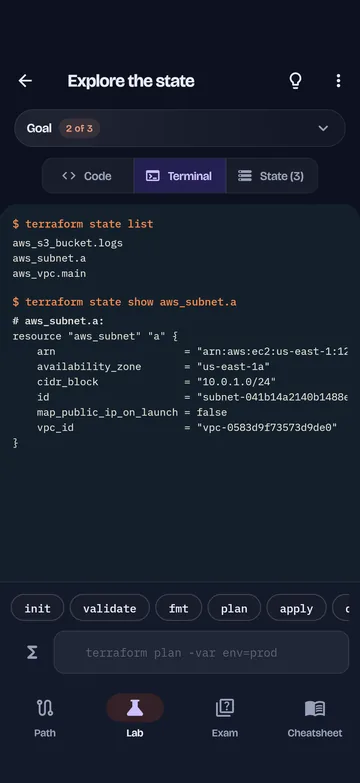
Planfile's Labs run on a simulated cloud, so there are no real resources to import, and the app doesn't simulate terraform import. Its State and backends chapter covers the related state work: inspecting state with terraform state list and show, removing resources with removed blocks and terraform state rm, and renaming with moved blocks in the Lab Rename without destroying.
Questions
How do I import an existing resource into Terraform?
Add an import block with to = the resource address and id = the provider's ID for the object, write a matching resource block (or use terraform plan -generate-config-out=generated.tf), check the plan shows only an import, then run terraform apply.
Does terraform import create configuration?
The terraform import command doesn't; you write the resource block first. With import blocks, terraform plan -generate-config-out=FILE generates a draft resource block, an experimental feature since Terraform 1.5.
How do I import an S3 bucket into Terraform?
The import ID of aws_s3_bucket is the bucket name: import { to = aws_s3_bucket.logs, id = "acme-logs" } (on separate lines), or terraform import aws_s3_bucket.logs acme-logs. Versioning, policy and encryption are separate resources with their own imports.
Can I import into a Terraform module?
Yes. Put the import block in the root module and set to to the module address, for example module.storage.aws_s3_bucket.this. The resource block stays in the module. Terraform 1.16 and later also accept import blocks inside child modules.
Should I delete import blocks after applying?
You can. Once the resource is in state, an import block does nothing on later runs, so delete it or keep it as a record.
What is the difference between terraform import and terraform state rm?
They are opposites. Import adds an existing object to state so Terraform manages it; state rm (or a removed block with destroy = false) takes it out of state without destroying it.